PDFreflow / Guides
PDF Reflow in Microsoft Word, explained
Microsoft introduced "PDF Reflow" with Word 2013. It is not a reading mode: it turns a PDF into a Word document you can edit. Today's help pages simply call it opening a PDF in Word.
How to use it
- In Word, open the PDF with File, Open, as you would a document.
- Confirm the conversion. Word says it will make an editable copy, and that the copy may not look exactly like the PDF.
- Edit, then save as a Word document, or as a new PDF. Your original PDF is not changed.
What it gets wrong
A PDF stores where each letter sits on the page, not which letters make a paragraph, a table or a column. Word has to guess, and some things it guesses badly. Microsoft's own list:
- Tables with cell spacing.
- Footnotes that run over more than one page, and endnotes.
- Page colors, page borders and frames.
- Tracked changes, comments, bookmarks and tags of the PDF.
- Audio, video and other active elements.
- Font effects such as glow or shadow.
A scanned PDF has no text at all, only pictures of pages, so there is nothing for Word to convert until it has been through text recognition (OCR).
When it's the right tool
When you need to change the text: fix a letter, reuse a paragraph, update an old form. A plain, text-heavy PDF usually comes out fine. The more designed the page, the more cleanup afterwards.
When you only want to read it
Converting to Word for reading is a detour, and on a phone it doesn't help: the result is still laid out like a printed page. A reflowing reader does it the other way round. It leaves the PDF alone and wraps the text to your screen as you read.
PDFreflow is a reader app made for papers, textbooks and manuals on a phone. It finds the columns, drops the page headers and footers, keeps formulas and figures as pictures in the text, and keeps citations tappable. All of it happens on your phone; your file never leaves it.
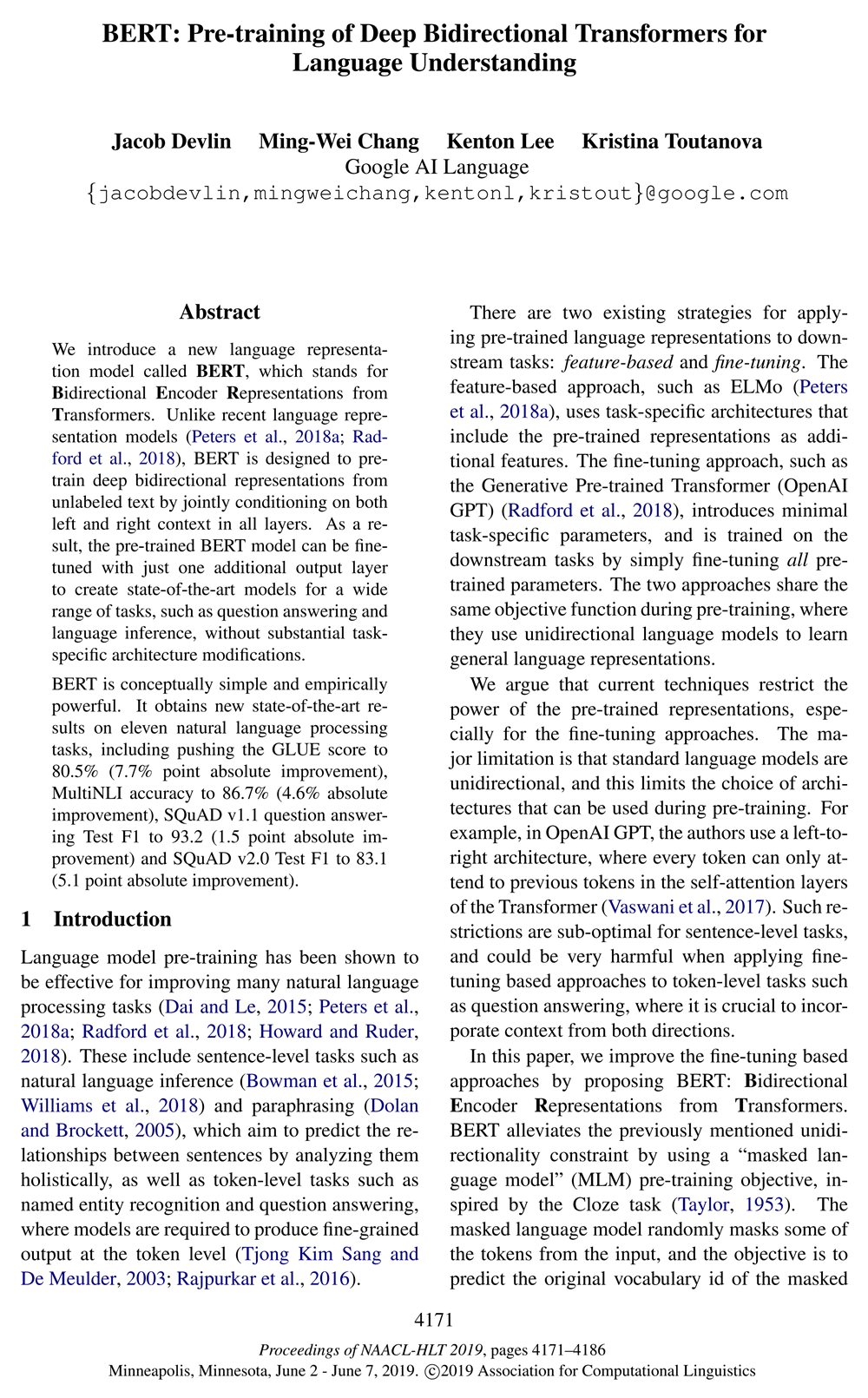

Page 1 of the BERT paper (Devlin et al., 2019). Left: the PDF as printed. Right: the same page in PDFreflow, shown in dark mode. Light mode, color palettes and fonts are yours to choose.
It's not perfect on every layout yet. If a page reads wrong, long-press the text and send feedback from the app. I read every report.
Try it
Free to try: the first 30 pages of every document are free, and during the open beta one tap unlocks the rest of a book.
Works with text-based PDFs. Scanned documents aren't supported.