PDFreflow / Guides
How to reflow a PDF on iPhone and iPad
Apple Books and Files show a PDF as a tiny printed page, so a two-column paper means pinch, zoom, drag, repeat. Reflowed, the text fits your screen in one column and you just scroll. Here's how.
Four steps
- Join the beta. PDFreflow for iPhone and iPad is in open beta on Apple's TestFlight. Install TestFlight from the App Store, then tap the App Store button below; it opens the beta.
- Open your PDF, whichever way is handiest:
- tap Import in the app,
- or, in Files, Mail or Safari, tap Share and pick PDFreflow.
- Read. It opens already reflowed. Scroll down; nothing to zoom.
- Make it yours. Font, text size, margins, colours and dark mode live in Settings.
The PDF
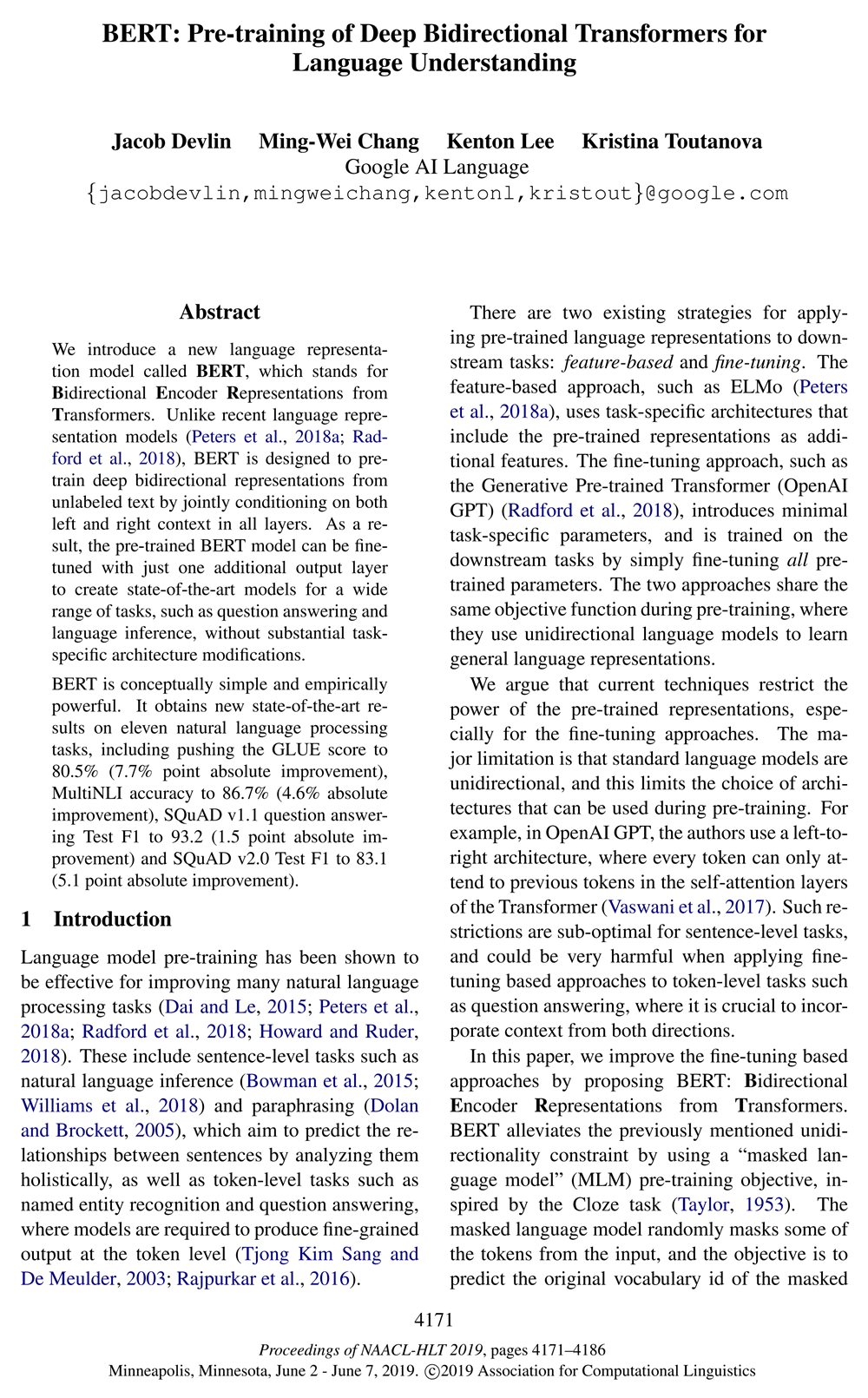
In PDFreflow · light / dark


Page 1 of the BERT paper (Devlin et al., 2019). Left: the PDF as printed. Right: the same page in PDFreflow, in light and dark mode.
What to expect
- Made for hard layouts: two-column papers, textbooks, manuals. Formulas and figures stay in the text as pictures, and citations stay tappable.
- Not only PDF: EPUB, TXT and HTML work too.
- No scans: a scanned PDF is a photo of a page, with no text to reflow.
- Private: no account, and your files never leave your device.
It's not perfect on every layout yet. If a page reads wrong, long-press the text and send feedback from the app. I read every report.
What it costs
The first 30 pages of every document are free. During the open beta, one tap unlocks the rest of a book, also free.